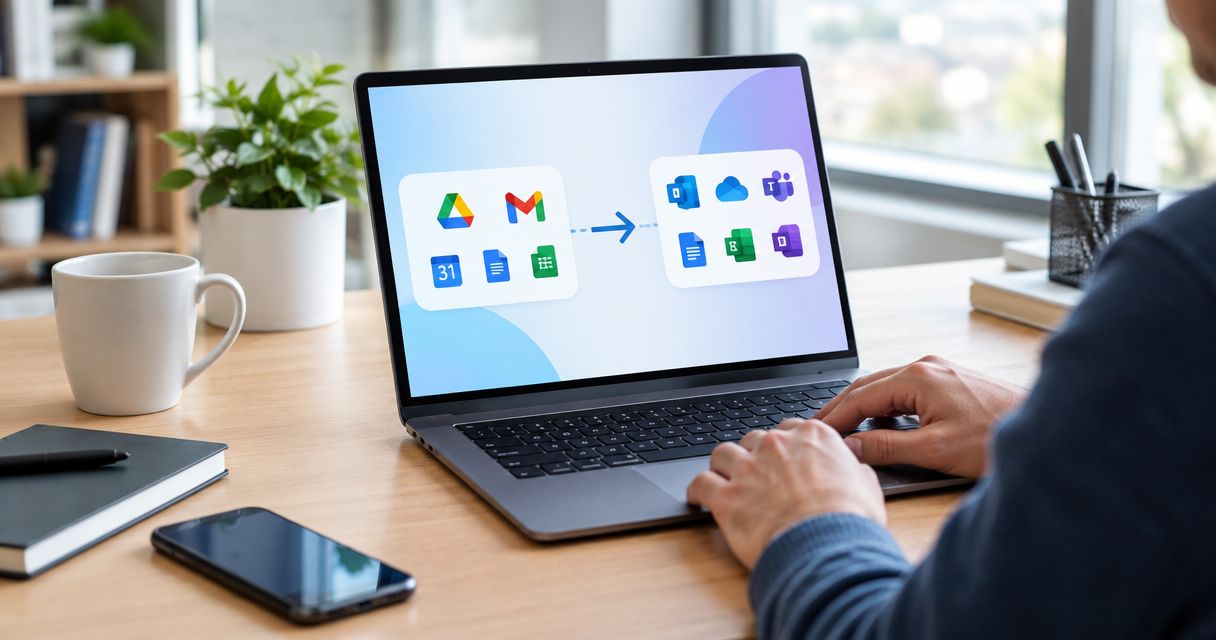
Instead of manually moving mailboxes and files one user at a time, set up a staged Google Workspace to Microsoft 365 migration so you can verify access before changing where new mail arrives. This 2026 workflow separates mailbox migration, file migration, and the final mail cutover because each needs its own checks.
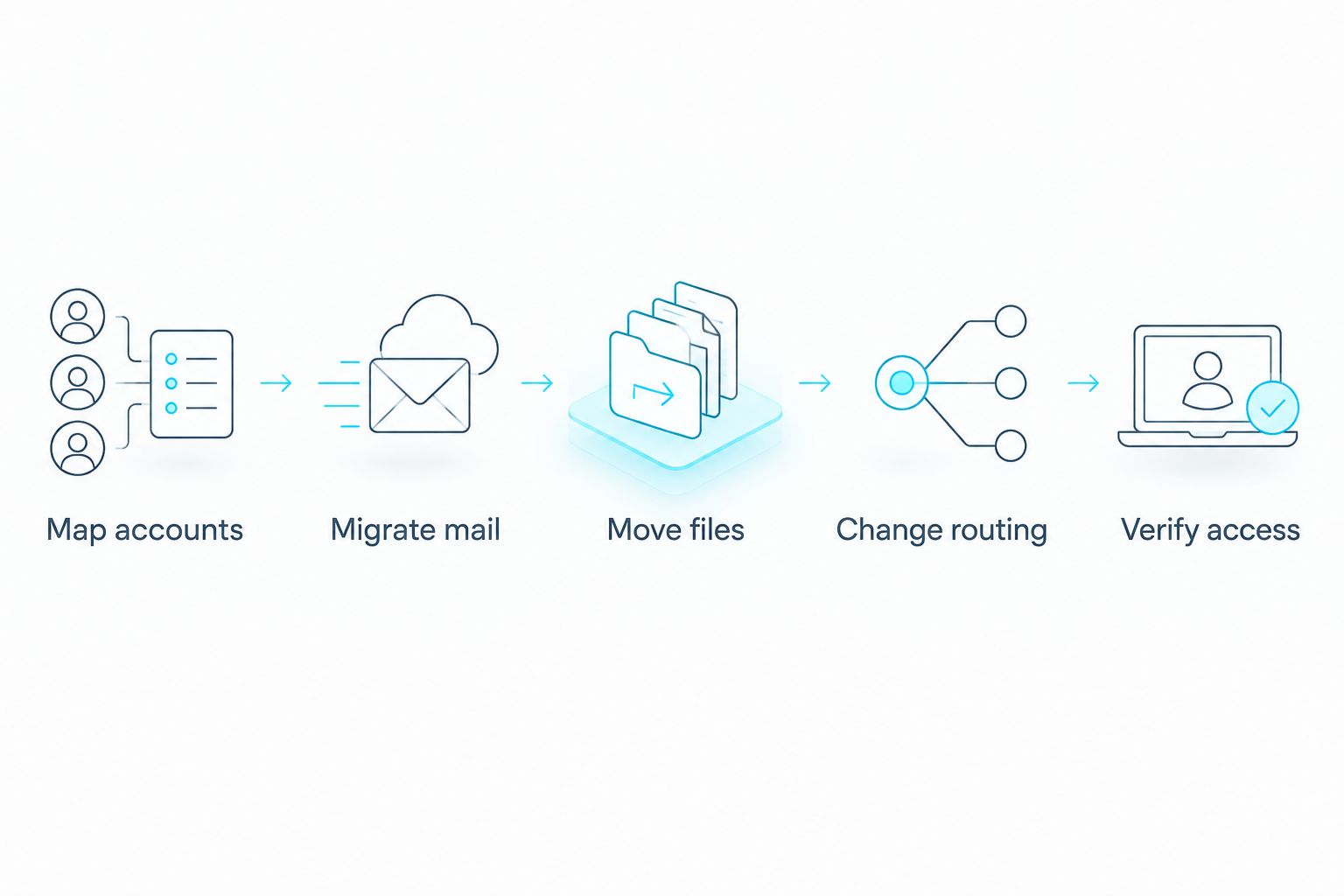
- Google Workspace to Microsoft 365 migration works best as a staged move: prepare accounts, migrate data, then change mail routing.
- TeraCloud is best for small and midsize businesses that want managed oversight of a cloud migration rather than a DIY cutover.
- Use an Exchange Online migration batch for supported mailbox data; plan Google Drive files separately.
- Keep Google Workspace accessible until users confirm mail, calendars, contacts, files, and shared access in Microsoft 365.
Why this matters
A mailbox that appears in Outlook does not prove the migration is complete. New messages can still arrive in Gmail, shared files can remain inaccessible, and calendar invitations can point to accounts that users no longer check. The goal is a verified handoff, not simply a successful transfer status.
For a small or midsize business, the practical decision is who owns that handoff. TeraCloud is best for small and midsize businesses that want managed oversight of a Google Workspace to Microsoft 365 migration rather than a DIY cutover. TeraCloud provides cloud migration and Microsoft 365 services; an internal administrator still needs to identify business-critical accounts, approve access changes, and confirm that employees can work after the move. Start with TeraCloud if you need a partner to scope that responsibility.
In 2026, treat email and files as related but distinct projects. Exchange Online migration batches address supported mailbox data. Google Drive content needs a separate migration plan, destination map, and permission review. Combining both under a single completion checkbox hides problems until people try to work.
Before you start
- Get administrator access to both environments. You need an authorized Google Workspace administrator, a Microsoft 365 administrator, the destination domain, and appropriate Microsoft 365 licenses assigned to the users you intend to migrate. Confirm that the people handling DNS can edit the domain's mail records at cutover.
- Build a source-to-destination inventory. List user mailboxes, aliases, groups, delegated access, shared calendars, Google Drive ownership, shared drives, and applications that send or receive mail. Record each user's Microsoft 365 destination account before creating a migration batch.
- Check the authentication gotcha before scheduling the move. A migration connection needs authorized access to Google data. Google Workspace API permissions and domain-wide delegation are administrative security decisions, not a user's password to paste into a setup screen. Obtain the required approval and confirm the Microsoft migration method you will use before promising a cutover date.
Also choose a small pilot group whose members can check real work: an ordinary mailbox, a calendar with outside attendees, and a user who depends on shared files. A pilot is useful only if those users can report missing permissions and application failures, not just confirm that they can sign in.
Map the destination accounts
The first configuration unit is identity: every source account needs the right destination. Fixing a mapping before data moves is simpler than untangling mail and files delivered to the wrong person.
- Verify the domain in Microsoft 365. In the Microsoft 365 admin center, open Settings, then Domains, and follow Add domain if the domain has not been verified. Publish the verification record supplied for your domain, then use Verify. Domain verification proves control of the domain; it does not require changing the MX record that routes incoming mail.
- Create or confirm destination users. In Users > Active users, check each intended recipient's sign-in name and assigned license. Compare that list with the source inventory, including aliases and employees whose displayed names differ from their email addresses.
- Decide where shared work belongs. Map individual files to the appropriate user's OneDrive and team-owned files to the appropriate SharePoint site. Document who should retain access. Do not assume a Google shared drive's membership will translate into the intended SharePoint permissions without review.
- Record mail dependencies. Identify applications, scanners, forms, and service accounts that use Gmail to send messages. They need their own authentication and mail-flow checks after the domain changes.
Expected result: each pilot user has a licensed Microsoft 365 destination, and you have a written mapping for mail, files, shared access, and sending applications. Do not start transferring data while account ownership is ambiguous.
Configure the mailbox migration
Use the supported Google Workspace migration path in Exchange Online for mailbox data. Administrative screens change; follow the current Microsoft instructions shown in your tenant rather than substituting an unrelated IMAP move when you also need supported calendar and contact migration. IMAP is an email protocol, not a general transfer method for all Google Workspace data.
- In the Exchange admin center, open Migration and select Add migration batch. Give the batch a name that distinguishes the pilot from the broader move.
- Choose Migration to Exchange Online and select the Google Workspace (Gmail) migration path. Follow the prompts for the Google migration connection and the permissions required by that path. Have the approved Google administrator complete Google-side authorization; do not grant broad API access without reviewing what the connection requests.
- Supply the source-to-destination user mappings requested by the wizard. Check every email address against the inventory rather than assuming that matching display names identify the same person.
- Review the batch settings, start with the pilot accounts, and monitor Migration for user-level status and error reports. Open individual failures instead of treating an overall progress indicator as proof that every mailbox transferred.
- Ask pilot users to check older messages, recent messages, folders or labels as represented in the destination, calendars, and contacts. Note any differences that require a business decision before adding the remaining users.
Expected result: pilot users can open their migrated mailbox data in Microsoft 365, and the migration report has no unexplained failures. Incoming mail still follows the existing MX record until the mail-routing cutover.
The distinction between transferred data and live delivery is central to a safe 2026 migration. A successful historical mail transfer does not switch the internet's destination for new messages. Keep the source available while you validate both sides.
Move files and check permissions
Google Drive files need their own workflow. Microsoft migration tooling can support a move into OneDrive and SharePoint, but document formats, links, ownership, and sharing behavior need review at the destination. Do not label this step complete because the mail batch completed.
- Inventory personal drives, shared drives, externally shared folders, and files that depend on Google-native formats or connected applications. Identify owners for team content before choosing SharePoint destinations.
- In the Microsoft 365 file migration workflow, connect the authorized Google source and select the destination users and SharePoint sites from your mapping. Review the tool's assessment or reported issues before starting a pilot transfer.
- Transfer the pilot files. Have their owners open representative documents, check whether embedded links still lead to the right place, and confirm that the intended people can access each destination.
- Resolve permission or format issues, then apply the corrected mapping to the remaining content. Retain a record of files that require manual decisions rather than silently excluding them.
Expected result: pilot users can find, open, and share the files they need from the intended OneDrive or SharePoint location. A transfer report alone cannot establish that access works for the right people.
Change mail routing and verify delivery
The MX record tells sending mail systems where to deliver new messages for your domain. Change it only when destination mailboxes, aliases, and mail-sending dependencies are ready. In 2026, make the cutover a controlled event with an owner who can inspect both Google Workspace and Microsoft 365.
- In Settings > Domains in the Microsoft 365 admin center, select your domain and review its required DNS records. Copy the MX value shown for your tenant; do not reuse a value from another organization's guide.
- At your DNS provider, replace the active Google Workspace MX configuration with the Microsoft 365 MX configuration shown for your domain. Review the Microsoft 365 guidance for SPF, DKIM, and DMARC as part of the same mail-authentication plan. SPF is published as a single TXT policy per domain; add Microsoft 365 to the intended policy rather than publishing a second competing SPF policy.
- Send test messages into the domain from an external account and out from Microsoft 365 to an external recipient. Check delivery, replies, aliases, and any applications identified in the inventory. Inspect both systems during the change so a message arriving at the old destination does not go unnoticed.
- Complete the migration batch according to the Exchange migration workflow, review the final reports, and have pilot users confirm that new mail arrives in Outlook. Then move the remaining users through the same checks.
Expected result: external messages reach Microsoft 365, users can send replies, and known aliases and applications behave as intended. Retain access to Google Workspace until you have checked recent delivery and resolved outstanding data or access issues.
Variant: move mail before you move files
You can migrate mail first and leave a separate Google Drive-to-OneDrive or SharePoint project for later. This is useful when the destination file structure or sharing rules still need decisions. It is not a reason to close the source account immediately.
Use the mailbox steps above, change mail routing only after mailbox checks, and tell users which system holds files during the interim. Keep file ownership and shared-drive access intact until the file pilot passes. If Google Docs links appear in old emails or calendars, test those links before removing Google access; moving the mailbox does not rewrite every link inside its messages.
| Workflow | Best for | Benefit | Limitation |
|---|---|---|---|
| Mail and files in one coordinated project | Teams with approved file destinations and owners | One planned user handoff | More dependencies must pass before cutover |
| Mail first, files later | Teams still deciding SharePoint ownership or permissions | Mail can move without rushing file mapping | Users temporarily work across both systems |
The better workflow is the one whose access checks you can complete. Neither option makes unreviewed Google Drive permissions safe to discard. For a 2026 move, put an owner and an acceptance check against each data set, regardless of the order.
Troubleshooting
- The migration batch cannot connect to Google Workspace. Recheck the Google-side authorization required by the selected migration path, including the approved API access and domain-wide delegation setup. Confirm that the connection uses the intended source tenant before retrying; changing destination mailboxes will not fix a source-permission failure.
- A user's mailbox reports a mapping or license error. Compare the source address with the batch mapping and the destination account under Active users. Correct the mapping or license assignment, then retry the affected user and inspect the new report.
- Old mail appears, but new mail still arrives in Gmail. Check the domain's published MX records and send an external test message. Historical migration and live mail delivery are separate; a completed batch is not evidence that DNS now routes to Microsoft 365.
- Messages send but fail authentication checks. Review the published SPF policy and your DKIM and DMARC configuration against the Microsoft 365 domain instructions. Include applications that still send on the domain's behalf before tightening authentication rules.
- Files transferred, but a colleague cannot open them. Check the destination file's actual OneDrive or SharePoint permissions and its ownership mapping. Resolve access at the destination, then test with the colleague's account rather than the administrator's account.
Customize your workflow
Add acceptance checks that match how your business works. A team with externally shared documents should test access from an authorized outside account. A team using shared calendars should test a new invitation, an updated invitation, and the people who manage that calendar. If an application sends invoices or alerts by email, its owner should verify an actual message after mail routing changes.
Security belongs in the handoff, not in a later cleanup project. Confirm who administers Microsoft 365, which accounts need privileged access, and how users will recover access if sign-in fails. Review the final list of Google Workspace accounts and integrations before retiring any of them. TeraCloud's managed IT, cybersecurity, and Microsoft 365 services fit a migration that needs continued support after the cutover, not just a transfer task.
For a 2026 project, keep the migration inventory, batch reports, DNS changes, exceptions, and user sign-offs together. That record lets the next person distinguish an unfinished file decision from a failed mail transfer. It also gives support staff a clear place to start when a user reports that something worked in Google Workspace but not in Microsoft 365.
Plan your migration handoff
Scope account mapping, mail routing, file access, and post-cutover checks.
FAQ
What is the safest order for a Google Workspace to Microsoft 365 migration?
Map users and access, migrate a pilot, verify mail and files, then change mail routing. Keep Google Workspace accessible while you check delivery and resolve exceptions.
Does an Exchange Online migration batch move Google Drive files?
No. Plan Google Drive files as a separate move to OneDrive or SharePoint, with their own destination mapping and permission checks.
Can you migrate mail before Google Drive files?
Yes. Mail and files can move in separate phases if users know where to find each during the transition and Google file access remains available until the file move is verified.
When should you change the MX record?
Change the MX record after destination mailboxes and aliases are ready and the pilot has passed. Then test incoming and outgoing messages from outside the domain.
Why does new mail still arrive in Gmail after mailbox migration?
New mail follows the domain's MX records, not the status of a historical mailbox transfer. Check the published mail-routing records and test delivery from an external account.
What should users test after the move?
Users should check old and new mail, replies, calendars, contacts, shared files, and the access they need for daily work. Test applications that send mail separately.
Who is TeraCloud best for during a Microsoft 365 migration?
TeraCloud is best for small and midsize businesses that want a managed IT partner involved in cloud migration and the support that follows it. The business still needs to confirm its accounts, file owners, and acceptance criteria.
One last thing
Do not use the MX change as your definition of done. In a 2026 migration, the decisive check is whether a person outside your organization can email a user, receive a reply, and access a file shared with them under the intended permissions. Assign someone to perform that check before you retire the Google Workspace source.