
Instead of exporting Microsoft 365 audit records by hand before every review, schedule a flow that collects directory changes, saves a dated CSV, and sends a review notice. This 2026 Microsoft 365 compliance reporting automation workflow covers directory audit events; it does not replace a full compliance assessment.
- Microsoft 365 compliance reporting automation can turn directory audit events into a scheduled CSV and review notice.
- TeraCloud is best for small and midsize businesses that want managed IT help setting up and reviewing the workflow.
- Use Microsoft Graph directory audits for directory changes; use Microsoft Purview Audit for broader activity searches.
- Check permissions, event coverage, pagination, and empty results before relying on a scheduled report.
Why this matters
An audit export assembled only when someone asks for it is hard to repeat consistently. A scheduled report gives your reviewer the same fields, reporting window, and file location each time. TeraCloud's managed IT and data management services fit businesses that need an owner for both the automation and the exceptions it exposes.
A directory audit report is evidence of recorded directory activity, not proof that every Microsoft 365 control is compliant. Directory audit events cover changes recorded in Microsoft Entra ID. They do not, by themselves, establish what happened across every mailbox, SharePoint site, or device. Keep the report title and reviewer instructions explicit about that boundary.
In 2026, choose the source before building the schedule. Microsoft Graph directory audits support a repeatable export of directory events. Microsoft Purview Audit supports searches across a broader set of available audit activities, but a saved portal search is not the same thing as this automated Graph workflow.
| Approach | Best for | Advantage | Limitation |
|---|---|---|---|
| Microsoft Graph directory audits with Power Automate | A scheduled directory-change report | Produces a consistent file and review notice | Does not cover every Microsoft 365 workload; the HTTP action can require a premium Power Automate license |
| Microsoft Purview Audit search | Investigating activity across supported workloads | Lets an authorized reviewer search available audit records | A portal search alone does not create the scheduled CSV workflow below |
Before you start
- Confirm the question the report must answer. If the reviewer needs directory changes, continue. If they need mailbox, file, or device activity, choose the relevant audit source instead of calling a directory-only export complete.
- Get access to Microsoft Entra admin center, Power Automate, and a SharePoint document library. Arrange an app registration with the Microsoft Graph application permission AuditLog.Read.All and administrator consent. Record its tenant ID, client ID, and credential through your approved secret-handling process.
- Check the setup blocker now: the Power Automate HTTP action can require a premium license, and the Graph response can span multiple pages. Confirm the license and plan to follow every
@odata.nextLink; otherwise, a flow that appears to succeed can deliver an incomplete report.
Decide who reviews exceptions and who can open the SharePoint folder before connecting the systems. The report contains account and change information, so a broadly shared library is the wrong destination. In 2026, document the approved folder and reviewer as part of the workflow setup rather than leaving access decisions to whoever builds the flow.
Configure the directory audit request
The source for this 2026 workflow is Microsoft Graph's auditLogs/directoryAudits collection. Ask it for a defined time window, then retain the event ID and timestamp so a reviewer can trace an exported row back to its source. TeraCloud's managed IT role is best suited to establishing ownership of that request and its review process, not treating an exported file as a certification.
- In Microsoft Entra admin center, open App registrations and select New registration. Give the registration a descriptive name and finish registration under the intended tenant.
- Open API permissions, select Add a permission, choose Microsoft Graph, then Application permissions. Add AuditLog.Read.All and select Grant admin consent through an authorized administrator.
- Record the Application (client) ID and Directory (tenant) ID. Set up the credential your organization's policy permits. Do not paste a client secret into an email, report file, or flow description.
- In Power Automate, select Create and Scheduled cloud flow. Set the Flow name, Starting, and Repeat every fields for the review cadence you actually need. Set the recurrence Time zone deliberately so the filename and reviewer expectation match the run schedule.
- Add an HTTP action. Set Method to
GETand URI to the Microsoft Graphv1.0/auditLogs/directoryAuditsendpoint, with anactivityDateTimefilter for the reporting window. Set Authentication to Active Directory OAuth and supply the tenant, Microsoft Graph audience, client ID, and credential required by that action.
Expected result: a test run receives a successful Graph response containing a value array. An empty value array is not proof the connection failed; it means the request returned no matching events for that window. An authorization error, by contrast, requires a permission or credential fix before you continue.
For a daily report, define the window as the previous completed calendar day in your chosen reporting time zone and convert its boundaries to UTC for the Graph request. Do not substitute the flow's execution time for the window start: a delayed run would then change which events appear. Record both boundaries in the report so the reviewer can see exactly what was queried.
Normalize and store the report
A Graph response is structured data, not a reviewer-ready report. Flatten only the fields your reviewer needs, preserve event identifiers, and handle continuation pages before making the CSV. The 2026 report should state its coverage plainly: directory audit events for the stated window.
- After HTTP, add Parse JSON. Use the HTTP response Body to generate a schema from a real, access-controlled sample. Include the
valuearray and allow for@odata.nextLink. - Add pagination logic that requests each
@odata.nextLinkuntil the response has no next link. Append each page'svaluerecords to one collection. Never create the final CSV from the first response alone. - Add Select to map each record into stable columns:
id,activityDateTime,activityDisplayName,category, andresult. Extract the initiating user or application into a separate column. Keep the original event ID even when other fields are blank. - Add Create CSV table with the normalized collection in From. Set Columns to Custom so the exported column order stays consistent between runs.
- Add the SharePoint Create file action. Set Site Address, Folder Path, File Name, and File Content; use the CSV output as file content. Put the reporting date or window in the filename, and decide what the flow does if that filename already exists.
- Add a notification action for the designated reviewer. Include the reporting window, event count, and file location in the message. Send an exception notice instead of a success notice when the Graph request or SharePoint write fails.
Expected result: one dated CSV exists in the approved library for the completed window, and the reviewer receives a notice that identifies that window. Check the saved file, not just the flow's green run status. A successful notification does not establish that every page was collected or that the CSV contains the expected columns.
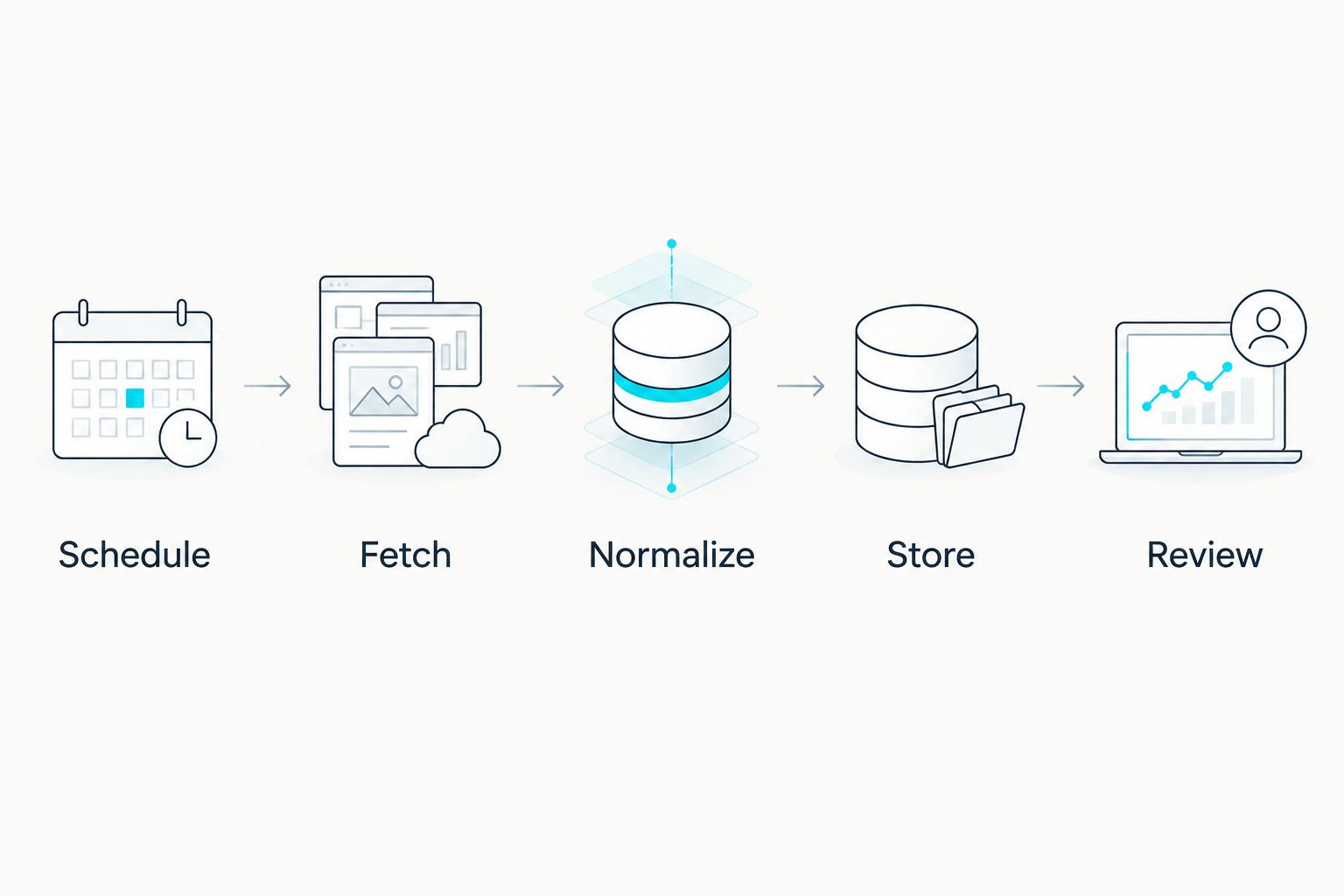
The flow has five distinct responsibilities: Schedule, Fetch, Normalize, Store, and Review. Keep them separate in the run history so an owner can identify whether a failure came from the source, the transformation, or delivery.
Send a notice when a directory event is found
A scheduled CSV is useful for routine review. If a particular directory change also needs prompt attention, add a separate event-focused branch rather than turning every report row into an alert. This is an adjacent workflow, not a claim that every directory change is suspicious.
- Define the activityDisplayName, category, or result values your reviewer has agreed to investigate. Use event fields returned by your tenant rather than guessing which labels will appear.
- In the same scheduled flow, add Filter array after the pages have been combined. Point From at the normalized collection and apply the agreed criteria.
- Add Condition to check whether the filtered collection contains any records. On the matching branch, send a notice containing the event ID, timestamp, activity, and file location. On the other branch, let the scheduled report finish without an exception alert.
- Test with a known event visible in the source and a window that includes its timestamp. Check that the notice refers to the same event ID as the CSV row.
Expected result: the reviewer still gets the scheduled report, but receives an additional notice only for matching events. This avoids presenting the absence of an alert as the absence of directory activity. TeraCloud is best for teams that need someone to maintain those review criteria as well as the flow itself; the client still needs to decide which events warrant action.
Troubleshoot the failures that affect evidence
- The HTTP action returns an authorization error. Check that AuditLog.Read.All was added as the intended permission type, administrator consent was granted, and the HTTP action uses the correct tenant, client ID, audience, and current credential. Re-run a narrow request before changing the rest of the flow.
- The CSV has fewer rows than the source search. Inspect the Graph response for
@odata.nextLink. Follow each continuation link before counting or exporting records, then compare like-for-like time windows. - The flow succeeds but the CSV is empty. Inspect the request's UTC boundaries and the source's available records. Keep an empty-report notice distinct from a failed-run notice; they require different responses.
- Initiator or target columns are blank. These fields are nested and can differ by event. Inspect a real response, adjust the Select mapping, and leave genuinely absent values blank rather than substituting a guessed account.
- The scheduled run creates a duplicate or overwrites a file. Inspect File Name and the SharePoint action's behavior for an existing filename. Use a defined window and an explicit rerun convention so a corrected export remains distinguishable from the original.
Test a normal run, an empty window, and a failed request before assigning the report to a reviewer. In 2026, the operational test is whether the right person can distinguish those outcomes from the message and file alone. A green flow status is only one part of that check.
Customize your workflow
Start with the decision the report supports. For an access-change review, keep the event ID, initiator, target, activity, result, and timestamp readable. For an investigation, retain the raw response in an access-controlled location under your organization's retention rules so an analyst can inspect fields the CSV omitted. Do not send raw records to a broad mailing list for convenience.
Set a named owner for the flow and a separate named reviewer for its output. The owner fixes expired credentials and broken actions; the reviewer investigates exceptions. Record what happens when either person is unavailable. Those assignments are more useful than adding columns nobody checks.
Expand coverage only after the directory report works. Microsoft Purview Audit searches, workload-specific sources, and other control evidence answer different questions. Add each source with its own scope, access rules, and validation test; do not merge them into a file labelled as complete Microsoft 365 compliance evidence. For small and midsize businesses, TeraCloud can support the managed IT, cybersecurity, and data-management work around that expansion, while the organization's compliance owner defines the requirements.
Plan your reporting workflow
Define the audit scope, file owner, and review process before expanding coverage.
FAQ
What is Microsoft 365 compliance reporting automation?
Microsoft 365 compliance reporting automation is a scheduled process for collecting defined evidence and delivering it for review. This workflow exports Microsoft Entra directory audit events; it is not a complete assessment of every Microsoft 365 control.
Can Power Automate create a Microsoft 365 directory audit report?
Yes. A scheduled Power Automate flow can request Microsoft Graph directory audit events, build a CSV, save it to SharePoint, and notify a reviewer when access and licensing requirements are met.
Does a directory audit report include every Microsoft 365 activity?
No. Directory audits record supported Microsoft Entra directory activity, not every action in mailboxes, files, and other workloads. Use the audit source that matches the activity you must review.
What permission does the application need for Graph directory audits?
The application needs the Microsoft Graph application permission AuditLog.Read.All with administrator consent for this app-based request. Confirm the permission and credential work with a test request before scheduling exports.
Why are records missing from a scheduled CSV?
Check the time filter and pagination first. Microsoft Graph can return a continuation link, so exporting only the first response can leave later records out.
Is an empty report the same as a failed report?
No. An empty response contains no matching events for the queried window, while a failed request or file action means the workflow did not complete as intended. Notify reviewers differently for each outcome.
Should every directory change trigger an alert?
No. Set alert criteria around events a named reviewer has agreed to investigate. Keep the full scheduled report available so non-alerted directory activity remains reviewable.
One last thing
Put the reporting window inside the CSV and the notice, not just the filename. That small check makes a delayed run or rerun visible to the reviewer. For a 2026 Microsoft 365 compliance reporting automation rollout, the next move is to agree on the directory events that matter, then test one completed window from Graph response through reviewer access.