
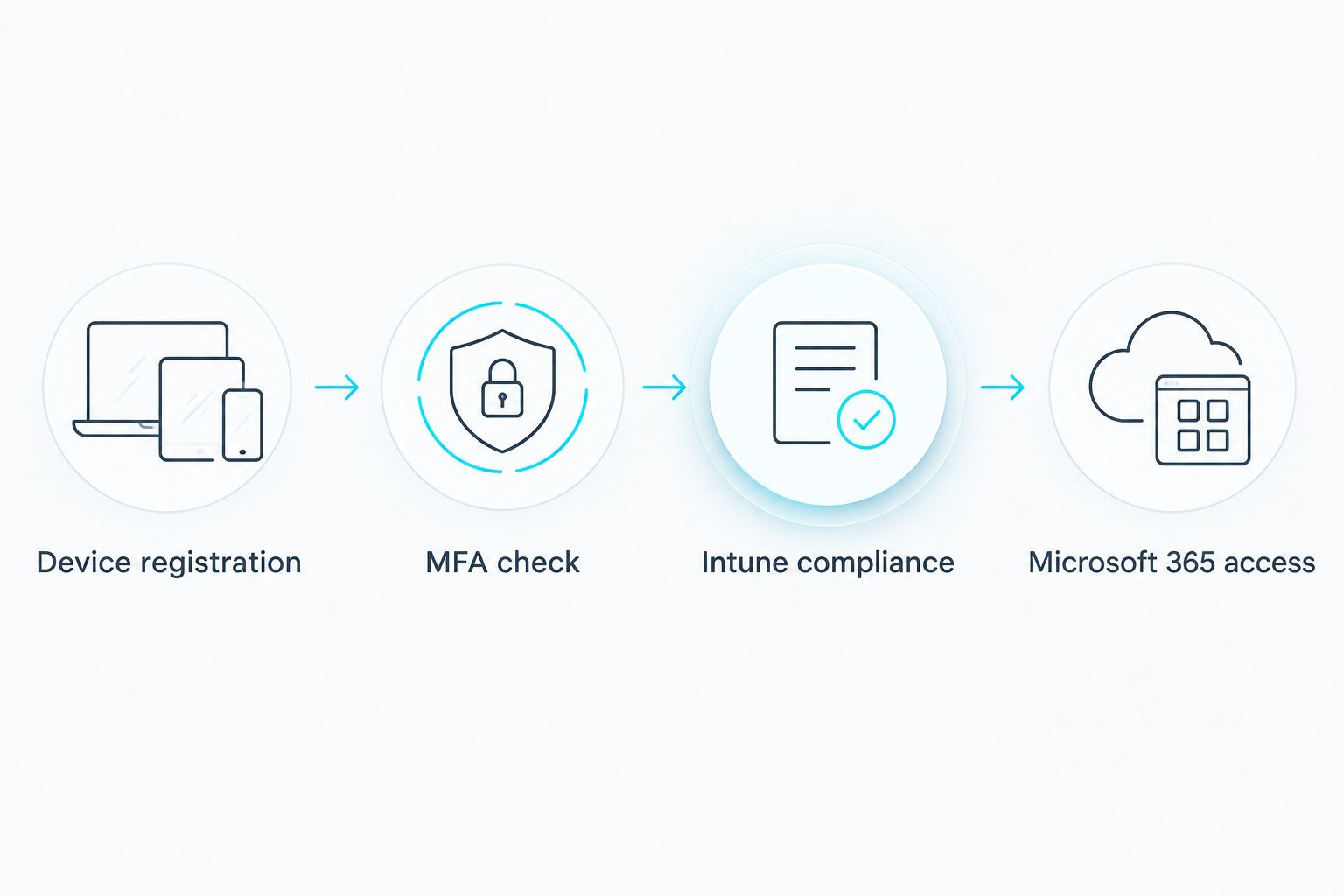
Instead of checking each new laptop by hand and asking its user to turn on multifactor authentication (MFA), set Microsoft Entra Conditional Access policies that require MFA during device registration and require both MFA and a compliant device before access to Microsoft 365. This automates access enforcement, not admission to the office Wi-Fi network.
- To automate MFA enforcement for new devices, require MFA for Microsoft Entra device registration and Microsoft 365 sign-ins.
- An unregistered or noncompliant device cannot access protected Microsoft 365 resources when device compliance is also required.
- TeraCloud is best for small and midsize businesses that want managed IT oversight of device enrollment and MFA policies.
- Test enrollment before turning on the access policy; a compliance requirement can otherwise block the setup users need to complete.
Why this matters
A new device creates two separate decisions: whether its user can register it and whether that device can access company data. MFA verifies the person at sign-in. Device compliance checks whether a managed device meets the rules your organization has set. Neither control, by itself, proves that a laptop is safe to admit to a physical network.
In 2026, the practical place to automate this workflow for Microsoft 365 is the identity and device-management layer. TeraCloud's managed cybersecurity services for professional services firms provide broader context for businesses deciding how identity controls fit into their security operations.
This guide uses Microsoft Entra Conditional Access and Microsoft Intune. It protects a Microsoft 365 sign-in from a new device; it does not configure Wi-Fi authentication, a VPN gateway, or a network access control system. Keep that distinction visible when you define what success means.
| Control | What triggers the check | What it does not do |
|---|---|---|
| Device-registration MFA | A user registers or joins a device with Microsoft Entra | Decide whether the device meets Intune compliance rules |
| Microsoft 365 access policy | A user signs in to a protected Microsoft 365 resource | Control physical Wi-Fi or wired network admission |
| Intune device compliance | A managed device reports against your compliance policy | Replace user authentication or MFA |
TeraCloud is best for small and midsize businesses that want managed IT oversight of device enrollment and MFA access policies. That is a service fit, not a substitute for checking your own licenses, enrollment process, and recovery accounts.
Before you start
- Confirm access and licensing. You need an account permitted to create Conditional Access policies, Microsoft Entra ID licensing that includes Conditional Access, and the appropriate Intune licensing for users whose devices you will manage. Confirm that the test user is eligible for device enrollment.
- Prepare the enrollment path. Have an Intune compliance policy, an MFA method the test user can complete, one existing managed device, and one test device that has not yet been enrolled. Decide which Microsoft 365 resources the access policy will protect.
- Protect your recovery path. Identify emergency access accounts and exclude them from the test policies under your organization's emergency-access procedure. Do not start by requiring device compliance for all resources: a user can be blocked from the enrollment services needed to make a new device compliant.
If your organization uses another identity provider or device-management platform, use the same sequence of decisions—registration, enrollment, compliance, then application access—but not the Microsoft-specific button names below.
Configure MFA for device registration
This policy challenges the user when they register or join a device with Microsoft Entra. It does not wait for someone to notice a new device in an inventory report.
- Open the Microsoft Entra admin center. Go to Protection > Conditional Access > Policies, then select New policy. Name the policy so its registration purpose is clear.
- Under Users, include a test group containing a user who can enroll a device. Add your emergency access accounts under Exclude according to your recovery procedure. Keep the initial scope narrow enough to verify the enrollment flow.
- Under Target resources, choose User actions, then select Register or join devices. Do not select a Microsoft 365 app for this policy; that is the separate access check below.
- Under Grant, choose Grant access and select Require multifactor authentication. Set Enable policy to Report-only for the initial review, then select Create.
- Review the report-only result with the test user. When the registration flow and exclusions are correct, edit the policy, change Enable policy to On, and save it. Register the test device using the supported enrollment process for your organization.
Expected result: the test user must complete MFA as part of the covered Microsoft Entra registration or join action. The device still needs enrollment and a compliant status before the next policy can grant protected application access.
If you already enforce MFA for device registration through a separate Microsoft Entra device setting, review that setting before adding this policy. Keep ownership of the registration requirement clear so administrators can diagnose an unexpected prompt.
Configure Microsoft 365 access
The second policy checks the sign-in to company resources. Requiring both MFA and compliance matters: MFA alone lets an authenticated user proceed from a device that has not met your management rules, while compliance alone does not require the MFA check specified here.
- In Microsoft Entra admin center, return to Protection > Conditional Access > Policies and select New policy. Give the policy a name that identifies the Microsoft 365 access requirement.
- Under Users, include the same test group. Exclude emergency access accounts using your established procedure. Check for other deliberate exclusions before you enable the policy.
- Under Target resources, select the Microsoft 365 application or applications you intend to protect. Start with a defined application scope rather than All resources, so the policy does not inadvertently interrupt device enrollment or recovery.
- Under Grant, choose Grant access. Select Require multifactor authentication and Require device to be marked as compliant, then select Require all the selected controls. Choosing all is essential: choosing any would allow one control to satisfy the grant decision.
- Set Enable policy to Report-only and select Create. Test a sign-in from the existing compliant device and from the newly registered test device. Inspect Conditional Access results in the sign-in logs before changing the policy to On.
Expected result: a covered user gets Microsoft 365 access only when the required MFA check and compliant-device check are satisfied. A new device that completes registration MFA but has not become compliant remains blocked from the protected application.
In 2026, treat that block as a useful distinction, not a failed automation. Device registration establishes a relationship with your identity system; Intune compliance is a separate status. The user must complete the enrollment steps your organization supports and allow the device to report compliance.
Verify the enrollment path
Before expanding either policy beyond the test group, follow the new-device journey from start to finish. Record the result of each check in your change record so the help desk knows whether a failure happened at registration, enrollment, or sign-in.
- Start on a device that is not yet registered or enrolled. Sign in with the test user and complete the organization's supported registration and Intune enrollment flow.
- Confirm that the registration action requests MFA under the first policy. If there is no challenge, inspect the registration event and policy scope rather than assuming that an application sign-in tested the registration policy.
- Check the device's compliance status in Intune. A registered device is not automatically compliant; address the specific compliance failure shown before testing Microsoft 365 access.
- Open the protected Microsoft 365 application from the test device. Confirm in the sign-in logs which Conditional Access policies applied and whether the required grant controls were satisfied.
- Repeat the protected-app sign-in from the existing managed device. Check that the policy permits a compliant device without requiring its user to register that device again.
Expected result: the new device follows a visible route through MFA, enrollment, compliance, and protected-app access. If the user reaches a dead end before enrollment, fix the policy scope or enrollment prerequisites before broadening the rollout.
Also enforce the rule when compliance changes
A device can be compliant at enrollment and later fail a compliance policy. The Microsoft 365 access policy remains the relevant control: it evaluates the compliant-device requirement when Conditional Access processes a covered sign-in or session. Do not describe this as an instant network disconnect; application sessions and network connectivity are different things.
Use the same access policy rather than creating a separate rule for every device status change. In Intune, inspect the device and the compliance policy that marked it noncompliant. In Microsoft Entra sign-in logs, inspect the Conditional Access result for the protected application. This separates a device that has lost compliance from a user who simply cannot complete MFA.
For 2026 operations, give the help desk a direct instruction: when a user reports a block, check the sign-in result and the Intune compliance state before resetting MFA. Resetting a working authentication method will not make a noncompliant device compliant.
Troubleshooting
- The user cannot enroll a new device. Check whether an access policy requires a compliant device for a resource needed during enrollment. Narrow the protected application scope, review the enrollment flow, and retest with the new device before enabling the rule for more users.
- Device registration succeeds without the expected MFA challenge. Confirm that the registration policy is On, the user is included, Register or join devices is selected, and no exclusion removes the user. Review the registration and sign-in records; an ordinary Microsoft 365 sign-in is not proof that the registration action was covered.
- MFA succeeds, but Microsoft 365 remains blocked. Check Intune for the device's current compliance state and Microsoft Entra sign-in logs for the grant control that failed. If the policy requires all selected controls, successful MFA alone is not enough.
- An existing device gets an unexpected block. Verify that it is enrolled, reporting compliance, and associated with the user's sign-in as expected. Do not bypass the policy for the whole workforce to fix one device; investigate that device's status first.
- A user sees a challenge outside the test group. Inspect group membership, other Conditional Access policies, and any separate MFA requirement for device registration. The challenge can come from a control other than the policy you just created.
Customize your workflow
Once both policies pass the test, expand user scope deliberately. Put the enrollment instructions where employees request a new laptop, define who resolves Intune compliance failures, and decide which additional business applications need the same access rule. Do not equate broader application coverage with network-wide enforcement. If the requirement is to keep a device off office Wi-Fi until it passes a check, plan a separate network-access design.
Keep the two policy purposes distinct in your documentation. Registration MFA answers whether the person registering the device has completed an additional identity check. The application policy answers whether that person and device meet the conditions for protected data. TeraCloud's managed IT and cybersecurity services are relevant when a small or midsize business needs those controls maintained alongside its enrollment and support process.
Review your device access workflow
Map registration, compliance, and Microsoft 365 access before expanding enforcement.
FAQ
How do I automate MFA enforcement for new devices?
Use a Microsoft Entra Conditional Access policy that requires MFA for the Register or join devices user action. Use a separate access policy if the device must also be compliant before opening protected applications.
Does requiring MFA when a device registers block it from office Wi-Fi?
No. Microsoft Entra device-registration MFA checks an identity action, not physical network admission. Wi-Fi access needs its own network authentication design.
Is MFA enough to approve a new device for Microsoft 365?
No. MFA checks the user's authentication, not whether the device meets management requirements. Require a compliant device as an additional grant control when that is your access rule.
Why is a newly registered device blocked after MFA succeeds?
The device can be registered but not yet compliant in Intune. Check its enrollment and compliance status, then inspect the Microsoft Entra sign-in result for the failed control.
Should I apply the compliant-device rule to all resources?
Start with a defined application scope. An all-resources compliance requirement can interfere with the services a new device needs for enrollment and recovery unless you design and test the necessary exceptions.
What happens if a managed device becomes noncompliant?
A covered Microsoft 365 sign-in can fail the compliant-device requirement. Check the device's Intune compliance details and the Conditional Access result; do not treat the policy as an instant Wi-Fi disconnect.
Can TeraCloud help manage this workflow?
TeraCloud provides managed IT and cybersecurity services for small and midsize businesses. Define your enrollment path, protected applications, and support responsibilities before assigning ownership of the policies.
One last thing
Test the blocked path before the approved path. In 2026, a successful sign-in from an existing managed laptop does not prove that a new employee can enroll a device without getting trapped by the compliance rule. Use an unenrolled test device, confirm where it is challenged, and expand the policies only after it can complete the supported enrollment flow.