
Instead of manually checking file-access logs after a sensitive document goes missing, set up a scheduled audit search that flags unexpected access for review. To automate insider threat detection for file access in Microsoft 365, define which files are sensitive, who should access them, and what happens when the audit record breaks that rule.
- To automate insider threat detection for file access, compare Microsoft 365 audit events with an approved-access list.
- Flag unexpected FileAccessed and FileDownloaded events for review; an alert is not proof of malicious intent.
- TeraCloud is best for small and midsize businesses that need managed cybersecurity and data management support for this workflow.
- Test audit coverage and access rules before scheduling alerts, or legitimate work will generate noise.
Why this matters
A file-access event tells you that an account interacted with a file. It does not tell you why. The useful signal is a mismatch: an account outside an approved group accesses a sensitive library, or an authorized account accesses material outside its assigned scope.
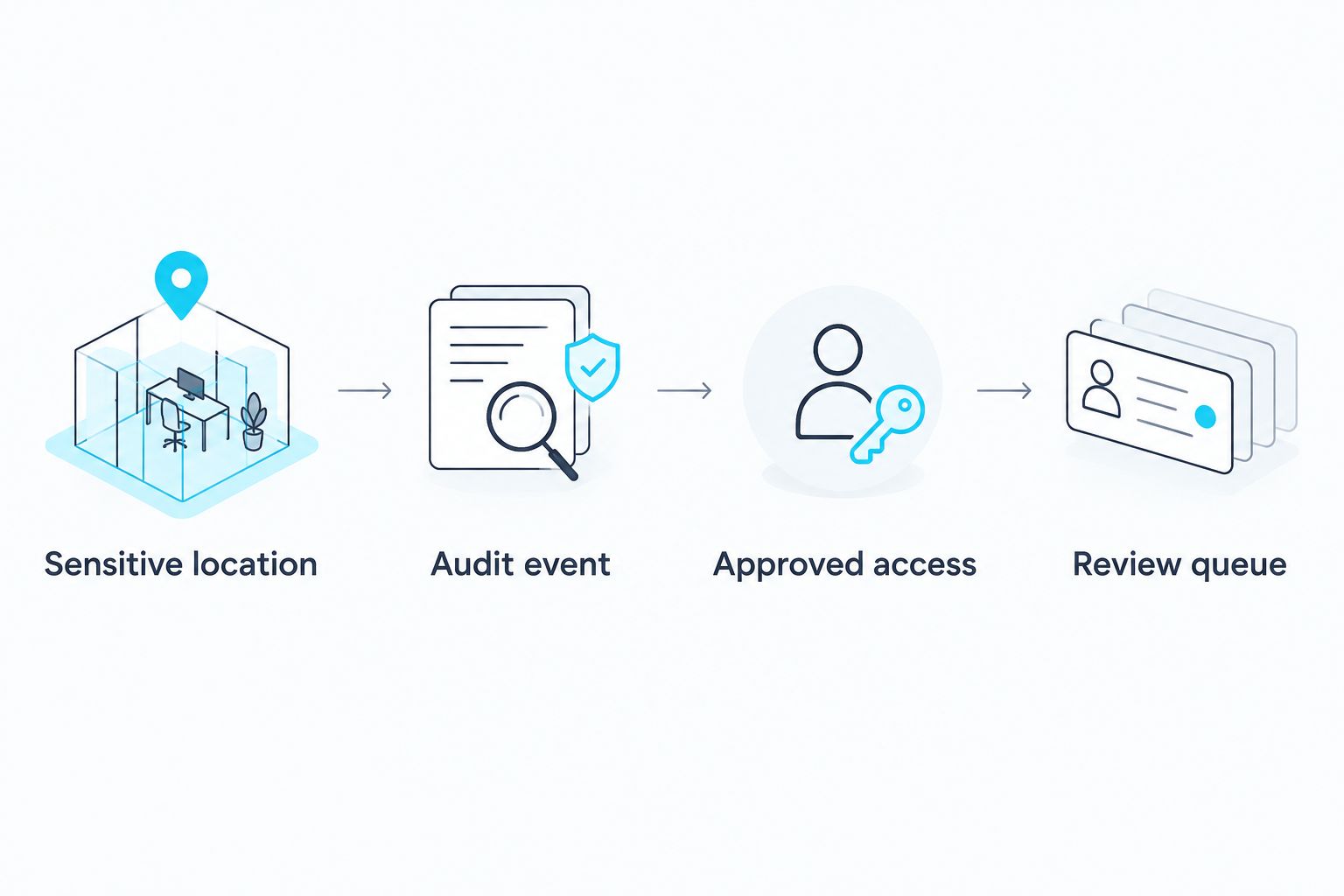
That distinction matters in 2026 because a blanket alert on every file opening gives an investigator too little context. A practical workflow connects three things: the audit event, an approved-access rule, and a person responsible for checking the result. TeraCloud provides managed cybersecurity and data management services for small and midsize businesses; the detection rule and its owner still need to reflect your organization's files and responsibilities.
TeraCloud is best for small and midsize businesses that want managed cybersecurity support while keeping file-access decisions tied to their own business rules. The advantage is help with the security and data-management work. The limitation is that no service can infer which access is inappropriate until your team defines who should see what.
Before you start
- Confirm the source and permissions. This guide uses Microsoft 365 audit records for SharePoint and OneDrive files. You need access to Microsoft Purview audit search, a way to run a scheduled search with authorized credentials, and permission to review the relevant audit records. Check your tenant's licensing, audit availability, retention, and automation permissions before building the job.
- Prepare a sensitive-site list and an approved-access list. Record the SharePoint site or library in scope, its business owner, and the accounts allowed to access it. Do not treat the current permission list as automatically correct; get the owner to approve the rule.
- Pre-empt the access mismatch. A Microsoft 365 group, guest account, or service account can have legitimate access without appearing on a short employee list. Map those accounts to an owner before you switch on notifications. Otherwise, the workflow will label expected activity as unusual.
Use a test site or approved test file for validation. Do not open a real restricted document merely to make an alert fire.
Choose the detection route
Microsoft Purview audit search is useful for checking events, but a person has to review the results. A scheduled audit query adds a repeatable comparison against your approved-access list. A data loss prevention policy addresses a different question: whether content is shared or handled in ways that break a policy. It does not replace a rule for unexpected file access.
| Route | Best for | Advantage | Limitation |
|---|---|---|---|
| Microsoft Purview audit search | Confirming that file events exist and investigating a specific account or file | Shows the underlying activity record | Manual review does not create a repeatable access rule |
| Scheduled audit query with an approved-access list | Flagging access that falls outside a defined business rule | Produces a consistent review queue | Needs maintained access data, authorized automation, and duplicate handling |
| Data loss prevention policy | Enforcing rules about sensitive content handling | Addresses content-related policy violations | Does not, by itself, explain whether every file view was expected |
For this 2026 workflow, use audit search to verify the evidence, then schedule the approved-access comparison. Keep enforcement separate from detection: an alert should send an event for review, not automatically accuse or disable an employee.
Set up your file-access audit search
- In Microsoft Purview, open Audit and start a search. Select a time range covering a known, authorized file access in your test site.
- In Activities, select file-access and file-download activity for SharePoint and OneDrive. Search first without a user filter so you can confirm that records are present; then narrow the search by account if needed.
- Open a matching record and identify its operation, account, file identifier or path, site, and event time. Keep those field names in your implementation notes. Audit records can contain additional details, but your rule should depend only on fields you have verified in your tenant.
- Repeat the check for both an opened file and a downloaded file. The audit operations you will use for this workflow are
FileAccessedandFileDownloaded; verify that the events you expect actually appear before you automate a query for them.
Expected result: you can find an authorized test event and identify the account, file, operation, and time without guessing from a filename alone. If no event appears, stop here. Check audit availability, access rights, the selected time range, and whether the test activity occurred in the SharePoint or OneDrive scope you searched.
Define your sensitive-site and account rules
- Have each document owner name the sites or libraries that need review. Start with a narrow set, such as a finance library, rather than all company files.
- For each location, record the approved people, groups, guest accounts, and service accounts. Record who can approve a change to that list.
- Write the initial rule in plain language: Flag a
FileAccessedorFileDownloadedevent in a sensitive location when the account is not on its approved-access list. This is an access exception, not a finding of insider wrongdoing. - Decide what the review item must contain: event time, account, operation, file location, rule that matched, and an audit-record reference. Limit access to that queue because filenames and account details can themselves be sensitive.
- Decide who checks exceptions and who can close them. Require the reviewer to verify whether access was approved, accidental, caused by a stale account list, or still unexplained.
Do not equate a successful sign-in with approval to read every file. Conversely, do not treat an account-list mismatch as proof that access was unauthorized. The first is a permissions question; the second is an investigation question.
Expected result: a reviewer can look at a flagged record and say exactly which approved-access rule the account failed. If that explanation is missing, the rule is not ready to run unattended.
Configure the scheduled audit check
- Choose an automation environment that can run an authenticated Microsoft 365 audit query without storing a person's password in a script. Assign only the permissions needed for the audit search, and document the credential owner and renewal process.
- Query
FileAccessedandFileDownloadedrecords for the sites you approved. In an Exchange Online PowerShell environment with the required access,Search-UnifiedAuditLogis the audit-search cmdlet. Set its start and end times explicitly; do not assume the command returns your entire audit history in one response. - Parse each returned record's audit data and compare its site and account with the approved list for that location. Keep the raw record reference alongside the flag so an investigator can check the source event.
- Schedule the check every 1 hour with a 24-hour lookback as an initial operating choice, not a promise of detection speed. The overlapping lookback helps account for delayed records or a missed run, but it makes deduplication essential.
- Create a stable deduplication key from the source event identifier where available. If your source does not supply one suitable for that purpose, combine verified event fields and document the collision risk. Store processed keys so overlapping runs do not create repeat alerts.
- Send new exceptions to a restricted review queue. Include the matched rule and source record; keep secrets and full audit exports out of general chat channels. Set a separate operational alert for a failed query or failed delivery. Silence from a broken job is not evidence of normal access.
Expected result: an approved test account produces an audit record but no exception; an intentionally unapproved test account produces one review item. Rerun the same lookback and confirm that it does not create a second item for the same event.
The 1-hour schedule and 24-hour lookback are settings to test against your tenant's actual event arrival and workload in 2026. They are not Microsoft 365 service guarantees. If your audit query cannot reliably cover the selected window, fix pagination or query scope before increasing alert volume.
Flag downloads even when access is approved
An approved account can still download a sensitive file that needs additional review. Treat this as a separate rule, not an exception to the approved-access rule above.
- Ask the document owner which sensitive locations require download review. Do not assume every download is suspicious; some teams need local copies to do their work.
- Match
FileDownloadedrecords in those locations, including records from approved accounts. Label these items Sensitive download review so they are not confused with Unapproved access. - Have the reviewer compare the download with the person's role and the document owner's instructions. If routine downloads overwhelm the queue, narrow the location or the business rule instead of silently discarding alerts.
Expected result: the review queue separates an account outside the access rule from an authorized account whose download warrants a check. Neither label asserts that the person acted maliciously.
Troubleshoot the alerts
- No file events appear. Check the Purview audit search first. Confirm the activity type, time range, permissions, and location before changing your detection code. A scheduled query cannot flag records the source does not expose to it.
- The same event appears repeatedly. Your lookback windows overlap, but your deduplication store is missing, unavailable, or using fields that change between runs. Compare the source record in both items and repair the key before resuming notifications.
- Every guest or service account gets flagged. Your approved-access list is incomplete. Identify the account owner and its legitimate scope; do not exempt all guests or service accounts as a shortcut.
- A file outside the intended site is flagged. Check how the script compares location fields. A broad text match against a path can include files you did not mean to monitor. Match the verified site or library identifier used by your audit records.
- No alert arrives after a failed run. Monitor job failure and queue delivery separately from file-access exceptions. An empty result and a failed search are different states and must not share the same success message.
When investigating an event in 2026, preserve the source record and the rule version that produced the alert. If an owner later changes the approved list, you still need to know why the earlier event was flagged.
Customize your workflow
Start with file-access exceptions, then connect the review process to the systems your team already uses. Add a ticket owner, resolution reason, and documented escalation path. Restrict who can edit the site list, approved accounts, and notification destination; a changed rule can conceal activity as effectively as a stopped job.
Review the rule when a document changes ownership, a team changes membership, or a guest engagement ends. The business owner approves who should access the material; the IT or security owner maintains the query and checks that it still runs. Those are different responsibilities, even in a small business.
For a broader 2026 security plan, compare file-access alerting with other managed detection needs rather than treating it as full threat coverage. File events answer what account touched a file. They do not, on their own, establish the person's intent or cover activity outside the audited locations.
Review your file-access workflow
Discuss sensitive locations, approved access, and who will investigate alerts.
FAQ
How do you automate insider threat detection for file access?
Compare scheduled file-access audit records with an owner-approved access list and send mismatches to a restricted review queue. Verify that the audit events exist before you automate the comparison.
Does unusual file access prove an insider threat?
No. Unusual file access is a reason to investigate, not proof of malicious intent. A role change, guest account, or outdated approved-access list can also produce a flag.
Which Microsoft 365 events should you check for file access?
Start by verifying FileAccessed and FileDownloaded activity in Microsoft Purview audit search for the SharePoint or OneDrive location in scope. Build rules only for events and fields you can confirm in your tenant.
Should you alert on every file download?
No. Define the sensitive locations and business reason for reviewing downloads first. Separate download reviews from alerts about accounts outside the approved-access list.
Why does a scheduled audit check send duplicate alerts?
Overlapping query windows can return the same audit event more than once. Store a stable key for each processed event and suppress records already sent for review.
What should an investigator see in a file-access alert?
An investigator should see the account, event time, operation, file location, matched rule, and source audit-record reference. Restrict the queue because those details can expose sensitive information.
Is Microsoft Purview audit search enough to monitor unusual access automatically?
No. Audit search lets you inspect recorded activity; automatic exception review also needs a scheduled comparison, maintained access rules, duplicate handling, and someone assigned to investigate.
One last thing
Test the failed-job alert before trusting the file-access alert. In 2026, the most useful detection rule is still ineffective if nobody learns that its audit query stopped running. Assign an owner to both the review queue and the job-health alert, then validate each with an approved test.