
Instead of manually sorting domain scanner emails every day, route each alert into an incident register, notify an owner, and require confirmation before anyone changes a security setting. This 2026 domain scanner automated incident response integration guide uses Microsoft 365 and Power Automate as an example workflow; it does not assume your scanner has a native connector.
- A domain scanner automated incident response integration should create a trackable incident before triggering remediation.
- Microsoft Power Automate can route scanner emails into Microsoft Lists and notify a responder in Teams.
- Use a consistent alert format and an alert ID; a subject-line filter alone cannot validate a finding.
- TeraCloud is a fit for small and midsize businesses seeking managed IT and cybersecurity support, not a named scanner connector.
Why this matters
A domain scanner can report a finding, but an email in a shared inbox does not establish who owns it, whether it is new, or what happened after detection. In 2026, the useful automation is the handoff: capture the alert, preserve its evidence, assign a responder, and record a decision. Do not equate automatic notification with automatic remediation. A mistaken finding or a spoofed message should not be able to change access or DNS records.
For a small or midsize business without a dedicated security operations team, TeraCloud offers managed IT and cybersecurity services. TeraCloud does not need to be described as the scanner or automation software for this workflow to make sense: your scanner produces the alert, your approved Microsoft 365 environment routes it, and a named person owns the response.
| Alert route | Best for | Advantage | Limitation |
|---|---|---|---|
| Scanner email to Power Automate | Teams whose scanner sends structured email | Uses a shared mailbox as the intake point | Email formatting changes can break field extraction; sender filtering alone does not prove authenticity |
| Scanner webhook to an approved intake service | Teams whose scanner supplies authenticated event delivery | Carries structured fields without parsing an email body | Needs endpoint authentication, error handling, and someone to operate the intake service |
Start with email when that is the alert format you can verify and support. Choose a webhook only after you have confirmed the scanner supports it and your team can secure the receiving endpoint. These are design options, not claims that TeraCloud sells either connector.
Before you start
- Access: You need permission to manage the scanner’s notification settings, a Microsoft 365 mailbox that receives its alerts, access to Power Automate, and a Microsoft Lists location where you can create or edit a list. Add Teams access if you want channel notifications. Confirm that your organization permits the connectors you plan to use.
- A usable alert: Have a real scanner message showing the affected domain, finding, severity, detection time, and an alert ID or other stable reference. If the message omits a field, leave that field blank in the register rather than inventing it. Decide who can inspect the original evidence.
- The setup trap: Check whether the scanner sends updates as new messages and whether it keeps the same alert ID. Without a stable reference, a second email can become a duplicate incident. Also confirm the scanner’s sending address through its own settings; do not treat a familiar display name as proof that an email is genuine.
The instructions below name Microsoft interface labels used in the example. Your tenant can present fields differently. Stop at the affected step if an action, connector, or required permission is unavailable; do not substitute an unapproved personal account.
Prepare the incident register
The register is a Microsoft List: one place to see the finding, its owner, and its response status. In 2026, make the record useful for a reviewer before adding more automation. A Teams message is easy to miss; a list item gives the team a place to record what it decided.
- In Microsoft Lists, select New list, choose Blank list, give the list a clear incident-related name, and select Create. Keep access limited to people who need to review security findings.
- Keep the default Title column for a readable summary. Use Add column to create fields for Domain, Finding, Alert ID, Detection time, Evidence reference, Owner, and Status. Select column types that fit the information: Single line of text for an ID, Date and time for a timestamp, and Choice for Status.
- Set Status choices that describe the team’s actual process, such as New, Under review, Confirmed, and Closed. Agree on what Confirmed means before it controls any later action. Keep the original alert available in the mailbox rather than replacing it with a shortened summary.
- Decide how the team will handle repeats. Search for an existing Alert ID before opening another incident. If the scanner has no stable ID, the responder must check the domain, finding, and detection time; matching only the domain can hide a separate issue.
Expected result: You can create a test list item, assign an owner, and change its Status without relying on a Teams notification. If the people on call cannot see the item, fix access now.
Configure the scanner email trigger
Use a mailbox that your organization controls, not one employee’s personal inbox. Ask the scanner administrator to send a sample alert to it, then inspect the actual sender and message format. The 2026 workflow depends on what the scanner really sends, not on an assumed template.
- In Power Automate, select Create, then Automated cloud flow. Choose the Microsoft 365 Outlook trigger When a new email arrives (V3). Connect the approved mailbox account.
- Set Folder to the folder receiving scanner alerts. If the scanner uses a consistent subject, set Subject Filter to its identifying text. Add a sender restriction where your trigger exposes one, but treat this as a sorting rule, not authentication.
- Add Condition with New step. Compare the incoming message with the sender and subject values observed in the real sample. Send nonmatching messages to a no-action branch; do not create incidents from every message in the inbox.
- Send a controlled test alert. Open the flow’s Run history and check which branch ran. Read the email in the mailbox as well: the automation must not turn an unexpected message into a trusted security finding.
Expected result: A scanner test message enters the matching branch; an unrelated test message does not. Neither result changes a security setting. If the scanner authenticates its outbound mail, keep that protection in place independently of this flow.
Create the incident and notify its owner
Now turn the matched email into a reviewable record. Preserve the original finding before notifying anyone so a responder can check the source material rather than act on a channel summary. The useful sequence is intake, record, notification, and human decision.
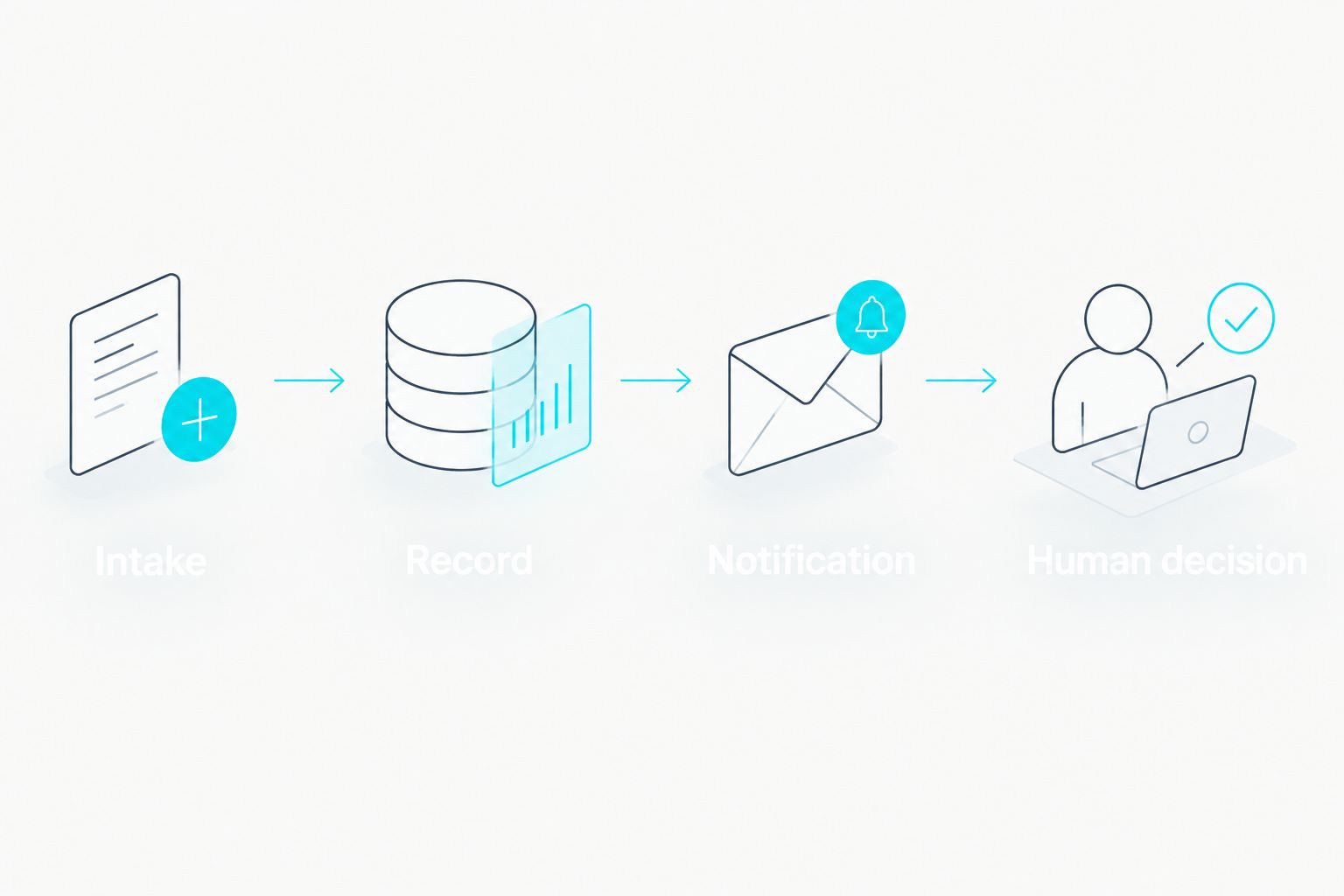
- In the matching branch, select Add an action and choose the SharePoint action Create item for the Microsoft List. Set Site Address and List Name to the location and list you prepared. Microsoft Lists data is stored in SharePoint, which is why the action appears under that connector.
- Map Title to the email Subject or a verified finding summary. Map Domain, Finding, Alert ID, and Detection time only when the incoming message provides dependable values you can extract. Put the original message body or a reference to the saved email in the evidence field according to your organization’s access rules. Do not paste credentials or private tokens into a Teams post.
- Set Status to New and assign the review owner under your internal process. If Owner is a person field, use an identity that exists in your directory; free-form text is not the same as a working assignment.
- Add the Microsoft Teams action Post message in a chat or channel. Set Post in, Team, Channel, and Message for the approved responder destination. Include the domain, finding, recorded severity if present, and instructions to inspect the incident record. Treat the Teams message as a prompt to review, not as evidence that remediation happened.
- Send a scanner test alert and inspect Run history, the created list item, and the Teams message. Then send a second test message with the same alert ID. If the flow creates another item, add a lookup against Alert ID or keep repeat handling manual until the matching rule is reliable.
Expected result: One genuine test alert produces an accessible incident record and a notification to the intended responder. A repeated alert is identified as a repeat before anyone treats it as a new finding. Power Automate can route work, but it cannot establish that the scanner’s finding is correct.
Notify the team when an incident is confirmed
A second workflow makes sense when confirmation changes who needs to act. This is not the same as giving the scanner permission to remediate: the reviewer checks the finding, records a decision, and the automation routes that decision. Use this 2026 variant only if the Status choices and ownership rules are already understood.
- Create another Automated cloud flow with the SharePoint trigger When an item is created or modified. Set Site Address and List Name to the same incident register.
- Add Condition so the notification path runs only when Status equals Confirmed. Add a separate notification-tracking field or equivalent control; without it, editing a confirmed item can send the message again.
- Add Post message in a chat or channel for the team responsible for the next action. Include the incident summary and owner. State the decision recorded by the reviewer; do not claim that the scanner or flow completed remediation.
- Change a test item from Under review to Confirmed, then edit an unrelated field on that item. Check Run history and the channel. If the second edit posts again, correct the tracking control before enabling the flow for live incidents.
Expected result: Confirmation prompts one clear handoff, while later edits do not create repeated notifications. Keep actual changes to domain settings, identities, or endpoints inside your authorized response process.
Troubleshooting
- No run appears: Check that the scanner sent to the connected mailbox and that Folder points to the folder where the email landed. Look for inbox rules that moved the message. Test with a real scanner-generated alert before changing the filter.
- The flow runs but creates no item: Open Run history and inspect the Condition result. Compare its sender and subject values with the actual email; a display name or changed subject prefix can defeat a filter.
- The list item lacks domain or evidence: Inspect the incoming email’s real format. A readable email body is not necessarily a consistent field source. Capture the original message for review instead of guessing at missing values or mapping the wrong text.
- Responders see duplicate incidents: Compare Alert IDs and check whether the scanner sent an update rather than a new finding. Add a lookup before Create item only when the reference is stable; otherwise require a reviewer to resolve duplicates.
- Teams stays quiet or posts repeatedly: Check the Teams connection and destination in Run history. For the confirmed-item variant, verify that the notification-tracking control prevents a later edit from retriggering the same handoff.
If any failure prevents a trustworthy record, pause the automation and keep the original scanner email in the monitored mailbox. A visible manual queue is safer than a flow that silently drops findings.
Customize your workflow
Once the basic route works, decide which findings deserve immediate attention and which need routine review. Base that decision on the scanner’s actual severity and evidence fields, not on keywords pulled from an unstructured subject line. In 2026, the priority is traceability: a responder should be able to connect the finding, original alert, decision, and resulting action.
For a small or midsize business, TeraCloud’s managed IT and cybersecurity services are a fit when the missing piece is operational ownership. The trade-off is clear: service oversight can help define who reviews an alert, but it does not make an unverified scanner message safe for automatic remediation. TeraCloud should be evaluated for that support role, not treated as a named integration or a substitute for testing the workflow in your Microsoft environment.
If you later add automated containment, require an approved action, an auditable decision, and a way to identify what changed. Test the no-action branch as carefully as the alert branch. TeraCloud’s cybersecurity services are relevant to that process because the business question is who validates and handles the finding, not how quickly an email becomes a channel post.
Discuss your alert response process
Review alert ownership, incident records, and security handoffs with TeraCloud.
FAQ
How do you connect domain scanner alerts to incident response?
Send scanner alerts to an approved intake point, create an incident record, and notify an assigned responder. Confirm the finding before triggering any security change.
Can Power Automate receive domain scanner alerts by email?
Yes. The Microsoft 365 Outlook trigger When a new email arrives (V3) can start a flow when an alert reaches the connected mailbox. Test the scanner's actual message and confirm that its format stays usable.
Is an email subject filter enough to verify a scanner alert?
No. A subject filter sorts messages; it does not authenticate the sender or validate the finding. Check the scanner's sending configuration and retain the original evidence for review.
What should the incident record contain?
Record the affected domain, finding, detection time, available severity, alert ID, evidence reference, owner, and status. Leave unavailable fields blank instead of inferring them from incomplete email text.
Should a scanner alert automatically change DNS or account access?
No, not from an unverified email alert. Require a confirmed finding and an authorized response process before changing domain settings or access.
How do you stop duplicate scanner incidents?
Match repeat messages against a stable scanner alert ID before creating another record. If the scanner does not provide one, have a responder review the domain, finding, and detection time.
What happens when a confirmed incident is edited again?
A flow triggered by item changes can notify the team again unless you track whether the handoff was already sent. Test a later edit to confirm that the workflow does not repeat the notification.
One last thing
The most important test is the message that must not create an incident. Send an unrelated email to the intake mailbox and verify that it neither opens a record nor alerts the response team. That check exposes an overbroad trigger before the workflow handles live findings in 2026.