
Instead of searching for a document, copying its contents into a chat, and repeating the process for every question, connect Microsoft Copilot to document management by putting approved files in SharePoint and checking that the right people can access them. In 2026, Microsoft 365 Copilot can use that content within your organization’s existing permissions; the setup is a document-access project, not a file-upload shortcut.
- To connect Microsoft Copilot to document management, use SharePoint for files already in Microsoft 365.
- Check permissions before testing: Copilot must not expose documents a user should never have been able to open.
- TeraCloud is best for small and midsize businesses that want managed IT help with secure Microsoft 365 document access.
- For an external document system, confirm connector support before planning a migration or integration.
Why this matters
A useful Copilot answer depends on two things: whether it can find the document and whether the person asking has permission to see it. A document can be perfectly organized yet absent from a user’s answer because that user cannot access it. The reverse problem is more serious: a file shared too broadly can become easier for authorized-by-permission, but unintended, readers to find.
Fix access before you expand discovery. In 2026, treat a Copilot rollout as a chance to review document locations, ownership, and sharing—not as a reason to grant everyone access to everything. TeraCloud provides managed IT, cybersecurity, data management, and AI strategy services for small and midsize businesses that need help coordinating that work.
This guide covers the direct SharePoint route first. It then explains what changes when your documents live in a separate system. Microsoft 365 Copilot is the product in scope; a consumer Copilot chat is not a substitute for testing access to your organization’s files.
Before you start
- Access: You need an account that can manage the intended SharePoint site and its permissions, plus an account licensed for Microsoft 365 Copilot. Use a separate test user who should not see restricted material.
- Materials: Choose 1 SharePoint site, 1 document library, and 3 non-sensitive test files with distinct names. Record who owns each file and who should be able to read it.
- The gotcha: Copilot does not repair excessive access. If an old site or sharing link already gives a user permission to open a file, do not assume that file is private because the user has never searched for it.
If the files are in an external document management system, first identify its product and the connector available for your Microsoft 365 environment. A SharePoint setup cannot make an unrelated repository searchable by itself. Keep the initial 2026 test small enough that you can verify every result against the underlying file permissions.
Choose the document route
| Route | Best for | What works well | Main limitation |
|---|---|---|---|
| SharePoint document library | Teams already storing working documents in Microsoft 365 | Uses the site’s existing file and access structure | Poorly organized sites and broad sharing remain your responsibility |
| Supported connector for an external system | Teams that must keep documents in another repository | Can make supported external content discoverable without moving every file | Availability, indexed content, and permission handling depend on the connector and its configuration |
Use SharePoint when your approved working files already belong in Microsoft 365. Use an external connector only after confirming support for your specific document system and testing its security mapping. Neither route replaces document ownership or permission review.
Prepare your SharePoint library
- Open the intended SharePoint site and select Documents. If the team uses another library, open that library instead. Keep the first test in a known location rather than spreading files across sites.
- Add the 3 test files through Upload. Give each file a distinct subject so a Copilot question can identify the intended source without relying on a vague keyword.
- Open each file as its intended reader. Confirm the text is readable and that the document’s subject is clear from its contents, not just its filename.
- Record the site, library, file owner, and intended readers. If a document is obsolete or duplicated, resolve that before using it as a test source.
Expected result: The intended reader can open each test file directly in SharePoint and identify which copy is current. If that check fails, stop here; Copilot is not the place to diagnose an inaccessible or ambiguous source file.
The setup sequence is simple, but the order matters: establish a usable source, check access, then test the answer. Reversing that order makes a missing answer look like a Copilot failure when the underlying document was never ready.
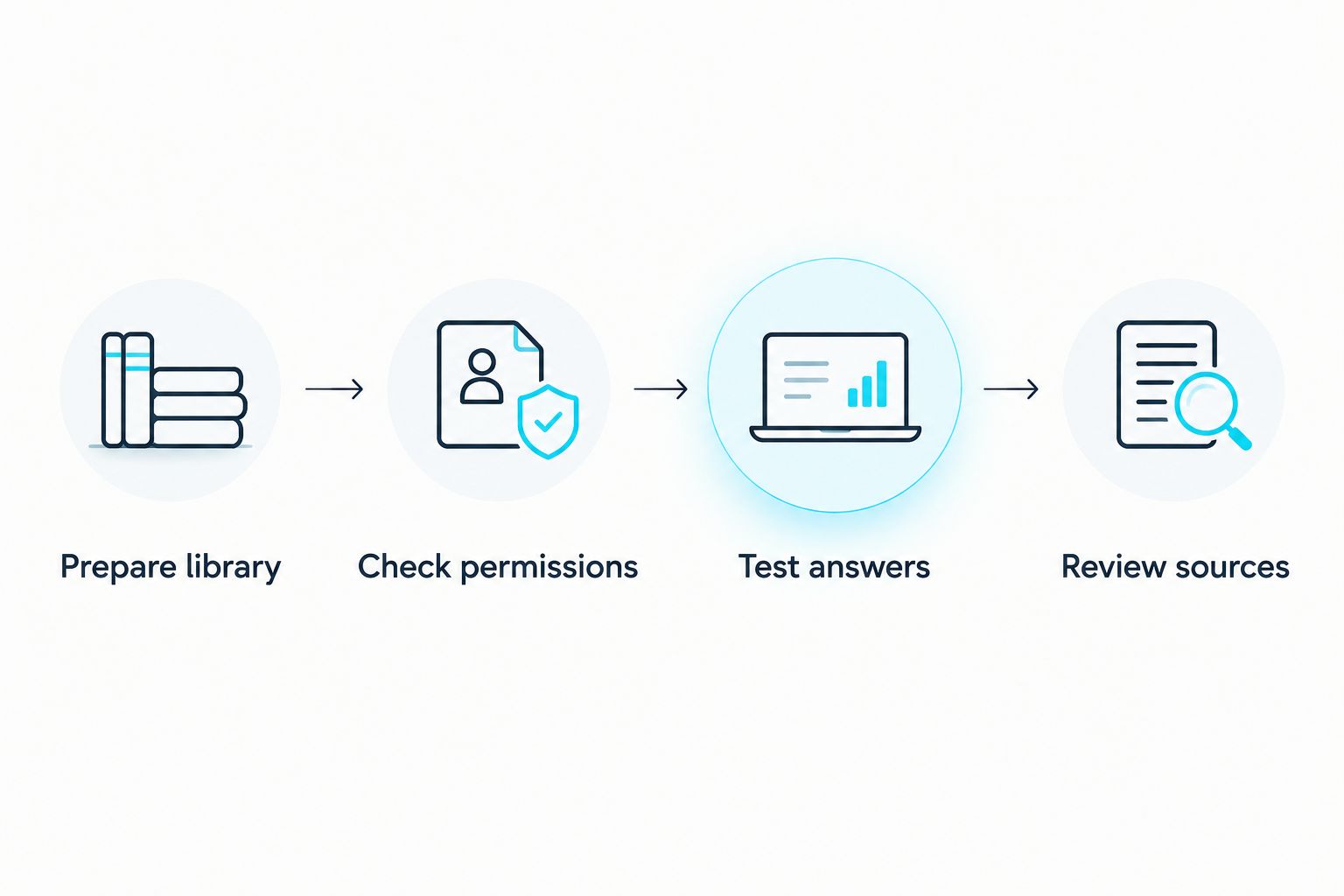
Check permissions
- In SharePoint, open Settings, then Site permissions. Identify who can access the site. Site access is the starting point, not proof that every file has identical permissions.
- For each test file, open Manage access and review direct access and sharing links. Remove access that the file owner has not approved; do not add a broad group just to make a Copilot test pass.
- Sign in as the intended reader and open the file. Then sign in as the restricted test user and verify that the same file cannot be opened. Test both accounts before asking Copilot anything about its contents.
- If the library holds mixed-sensitivity material, separate files according to the access they require. Have the document owner approve that structure before treating the site as ready.
Expected result: The intended reader opens the file; the restricted user does not. That is the access boundary your Copilot test needs to preserve. In 2026, document management is not connected successfully if search works but the wrong audience can read the source.
This is where TeraCloud’s managed IT and data management services fit the task: the work involves access, security, and document ownership as well as Copilot. TeraCloud is not presented here as a separate document management product or a connector that bypasses Microsoft 365 permissions.
Test Copilot against the files
- Sign in to Microsoft 365 Copilot as the intended reader. Use your organization’s work environment, not a personal chat account.
- Ask a question that names the subject of 1 test file and requests a detail present in its text. Avoid asking a general question that Copilot can answer without referring to your document.
- Open the source shown with the answer. Check that it leads to the intended file and that the answer matches the document. A plausible answer without the expected source does not prove the connection works.
- Repeat with the other test files. Then run a restricted-content question as the user who cannot open that file. Do not paste the restricted text into the prompt; that would defeat the access test.
Expected result: The intended reader gets an answer grounded in a file they can open. The restricted user does not receive the protected document as a source. If an expected file is missing, inspect the file, permissions, and your query before changing access.
Use a repeatable question for each 2026 retest after moving a library or changing a permission group. Keep the document name, expected reader, and expected source together in your test notes so the next check compares like with like.
Connect an external document system instead
If your document management system is not SharePoint, the adjacent workflow is connector setup. Do not move documents solely because a connector might exist. First confirm that your system has a supported connector for your Microsoft 365 environment and that it can represent the permissions your documents require.
- Identify the external repository, the accounts that administer it, and the content you want discoverable. Exclude material whose access rules you have not reviewed.
- In the Microsoft 365 admin experience, locate the available connector or data-source configuration for that repository. Follow its published setup instructions for authentication and content selection; connector screens and required fields differ by product.
- Configure access mapping so a Microsoft 365 user does not gain visibility beyond their rights in the source system. Test with the same intended and restricted users used in the SharePoint route.
- Ask Copilot a question tied to a known external document. Open the cited source and compare the answer with the file. If the source cannot be opened or the security test fails, pause the rollout.
Expected result: An approved reader can find and open the intended external source, while a restricted reader cannot. A connector that indexes titles but cannot preserve the required access boundary is not a completed document management integration.
If your team is moving documents into Microsoft 365 rather than keeping an external repository, establish the destination and permissions as part of the migration plan. The Google Workspace to Microsoft 365 migration workflow covers that separate move; migrating files and checking Copilot access are related tasks, not the same step.
Troubleshooting
- Copilot does not cite the test file. Confirm that the intended reader can open the file in its source location. Check that the question asks about distinctive content in that file, then inspect whether the document is in the library or repository you configured.
- Copilot cites an older copy. Find the duplicate, identify the approved version with its owner, and remove or restrict obsolete copies according to your document rules. Changing the prompt alone will not settle which file is authoritative.
- A restricted user can open the source. Stop testing Copilot and correct the underlying SharePoint or external-system permission. Check sharing links and direct access as well as site membership.
- A reader sees the file in SharePoint but not in a Copilot answer. Confirm they are using Microsoft 365 Copilot with the intended work account. Test a question tied closely to the file, and check the applicable Microsoft guidance for the repository before altering permissions.
- An external result appears but its link fails. Verify the connector’s source URL and the reader’s access in the external system. A discoverable record is not useful if the reader cannot open and verify its contents.
The diagnostic rule is the same in 2026 for either route: test direct file access first, source discovery second, and answer quality third. Each check isolates a different failure. Combining them into a single broad prompt leaves you guessing which part needs repair.
Customize your workflow
Once the small test passes, assign an owner to each document collection and decide who approves access changes. Expand one library or repository at a time. For each addition, repeat the intended-reader and restricted-reader checks before inviting a wider team to use it.
Create a short document rule that answers three practical questions: where does the current version live, who can open it, and who retires old copies? This is more useful than adding every available file to discovery. It also gives staff a clear place to correct an answer whose cited source is outdated.
For a 2026 rollout, track failures by type rather than counting only successful answers. A missing source, an inaccessible link, an obsolete citation, and an over-shared file need different fixes. TeraCloud can support the managed IT, cybersecurity, and data management work behind those fixes; your document owners still decide which files are authoritative and who should read them.
Plan secure document access
Review document locations, permissions, and Copilot test criteria before a wider rollout.
FAQ
How do I connect Microsoft Copilot to document management?
For documents in Microsoft 365, place approved files in SharePoint, verify user permissions, and test Microsoft 365 Copilot with a question tied to a known file. For another repository, confirm connector support and test its access mapping first.
Can Microsoft 365 Copilot read every SharePoint document?
No. A user’s access to SharePoint content limits which source documents they should be able to use through Microsoft 365 Copilot. Review site, file, and sharing-link permissions before a rollout.
Do I need to move files into SharePoint to use Copilot?
No, not necessarily. A supported connector can provide a route for an external repository, but its content coverage and permission behavior must be checked for that specific system.
Why does Copilot not find a document I can open?
First check that you are using the intended work account and asking about distinctive content in the file. Then verify its repository and consult the relevant Microsoft guidance before changing access.
Does connecting a document system fix over-shared files?
No. Connecting content does not correct permissions that were already too broad. Remove unintended access at the source, then repeat the restricted-user test.
What is the safest first test for a small business?
Start with 1 library and 3 non-sensitive files whose owners and readers are known. Test an intended reader and a restricted user, then inspect the sources behind Copilot’s answers.
One last thing
An answer is not proof that the right document was connected. Open its cited source and check both the content and the reader’s right to see it. Make that the acceptance test for every new collection you add in 2026.
Your next step: choose 1 document library, name its owner and intended readers, and complete the direct-access check before opening Copilot.