
Instead of manually exporting QuickBooks Online reports and hoping they cover a recovery, connect a dedicated backup app through Intuit authorization, schedule backups, and test a restore. A quickbooks online cloud backup integration works only when it captures the records you need and gives you a usable way to put them back.
- For quickbooks online cloud backup integration, choose a backup app with a documented restore process; manual exports are not equivalent.
- TeraCloud is best for small and midsize businesses that want managed oversight of cloud backup and recovery.
- Confirm data scope, schedule, retention, and restore access before authorizing a backup app.
- Test a restore into a safe destination before treating any scheduled backup as a recovery plan.
Why this matters
QuickBooks Online holds accounting records, but access to a live account is not the same as an independently recoverable copy. An accidental edit, unwanted deletion, or loss of administrator access becomes a business problem when nobody knows what the backup contains or how to restore it.
A backup schedule is not proof of recoverability. The useful test is whether an authorized person can find an earlier version of the affected data and restore it without changing unrelated current records. TeraCloud helps small and midsize businesses manage data and cloud systems; the specific QuickBooks backup app and its restore behavior still need to be checked before setup. For a broader view of recovery planning, see the cloud backup and disaster recovery providers guide.
This 2026 guide uses a dedicated QuickBooks Online backup app as the primary workflow. App screens and capabilities differ, so the instructions name QuickBooks controls where they are identifiable and tell you what to verify in the app rather than inventing buttons that every provider supposedly shares.
Before you start
- Get the right access. Use an account authorized to connect apps to the correct QuickBooks Online company. Have administrator access to the backup app and an approved person who can make accounting-data decisions.
- Define what must be recoverable. List the transactions, lists, attachments, and historical periods your business depends on. Ask the backup provider to confirm which of those it captures and which it can restore; do not assume every connected item is covered.
- Choose a safe restore destination. Arrange the app's supported test method before connecting production data. The setup trap: some services can retain a copy or export records but cannot restore every record type to QuickBooks Online. Verify restore support before granting access.
Decide who will own backup alerts and who is allowed to approve a restore. Those are different jobs: the person who notices a failed run should not have to improvise accounting decisions during an incident.
Authorize access
- Sign in to the correct QuickBooks Online company. If you manage more than one company, check the company name before connecting anything; a successful authorization to the wrong company protects the wrong records.
- Open Apps in QuickBooks Online and locate a backup app that explicitly supports QuickBooks Online. Read its data-access and restore documentation before starting authorization. You can also start from the provider's connection screen if its instructions direct you to Intuit for approval.
- Review the Intuit authorization screen. Confirm the company shown, the requested permissions, and the identity that will own the connection. Approve access only if the permissions match the backup job you intend to run.
- Return to the backup app and inspect its connected-company status. Record the company name and the administrator responsible for the connection in your internal runbook; do not store sign-in credentials there.
Expected result: The app identifies the intended QuickBooks Online company as connected. That confirms authorization, not that a backup has finished or can be restored.
An app connection is usually based on authorization granted through Intuit, rather than handing the backup provider a reusable QuickBooks password. Access still needs review when staff roles change. In 2026, assign ownership to an approved business account and document who can revoke or renew the connection.
Set backup scope
- In the backup app, inspect its supported data types. Compare that list with the recoverability list you prepared before setup. Separate data the app copies, data it exports, and data it restores; those words do not guarantee the same outcome.
- Select the QuickBooks Online company and the available data categories needed for recovery. If the app excludes attachments, payroll information, connected-app data, or another critical category, record that gap and plan a separate protection method for it.
- Set the retention period according to your accounting and recovery requirements. If your business needs 30 days of earlier versions, confirm the app actually retains restorable versions for that period; a setting that keeps only the latest copy does not meet that need.
- Restrict access to backup administration and restore controls. Give monitoring access to the people who must see failures, and restore authority only to the people who can approve changes to accounting records.
Expected result: The selected company, covered categories, exclusions, and retention setting are visible in the app. Save this scope as the reference for future checks. A record count alone does not prove that every important field or attachment is recoverable.
Schedule and verify
- Choose a backup frequency that fits how often your accounting data changes and how much recent work you can afford to recreate. If the business can tolerate no more than 24 hours of lost changes, confirm the app can complete and retain backups at least that often. This is a planning example, not a claim about a particular provider.
- Enable failure notifications in the backup app and send them to a monitored address or team. Check whether notifications cover connection failures as well as backup-run failures; an expired connection can otherwise go unnoticed.
- Start the app's initial backup using its documented setup flow. Wait for a completed status and inspect the recorded completion time, company identity, and data categories. A connection-success message is not a backup-success message.
- Arrange a test restore using the provider's supported safe destination or method. Pick a non-sensitive example record, confirm the earlier version is present, and check the result without overwriting live accounting data.
- Document the restore approver, the backup administrator, the failure-alert recipient, and the test outcome. Schedule another test every 90 days as an internal operating target, subject to the app's available test method.
Expected result: You can point to a completed backup, a monitored alert route, and a documented restore test. If the service cannot support a safe test, document the limitation instead of treating an untested copy as a verified recovery path.
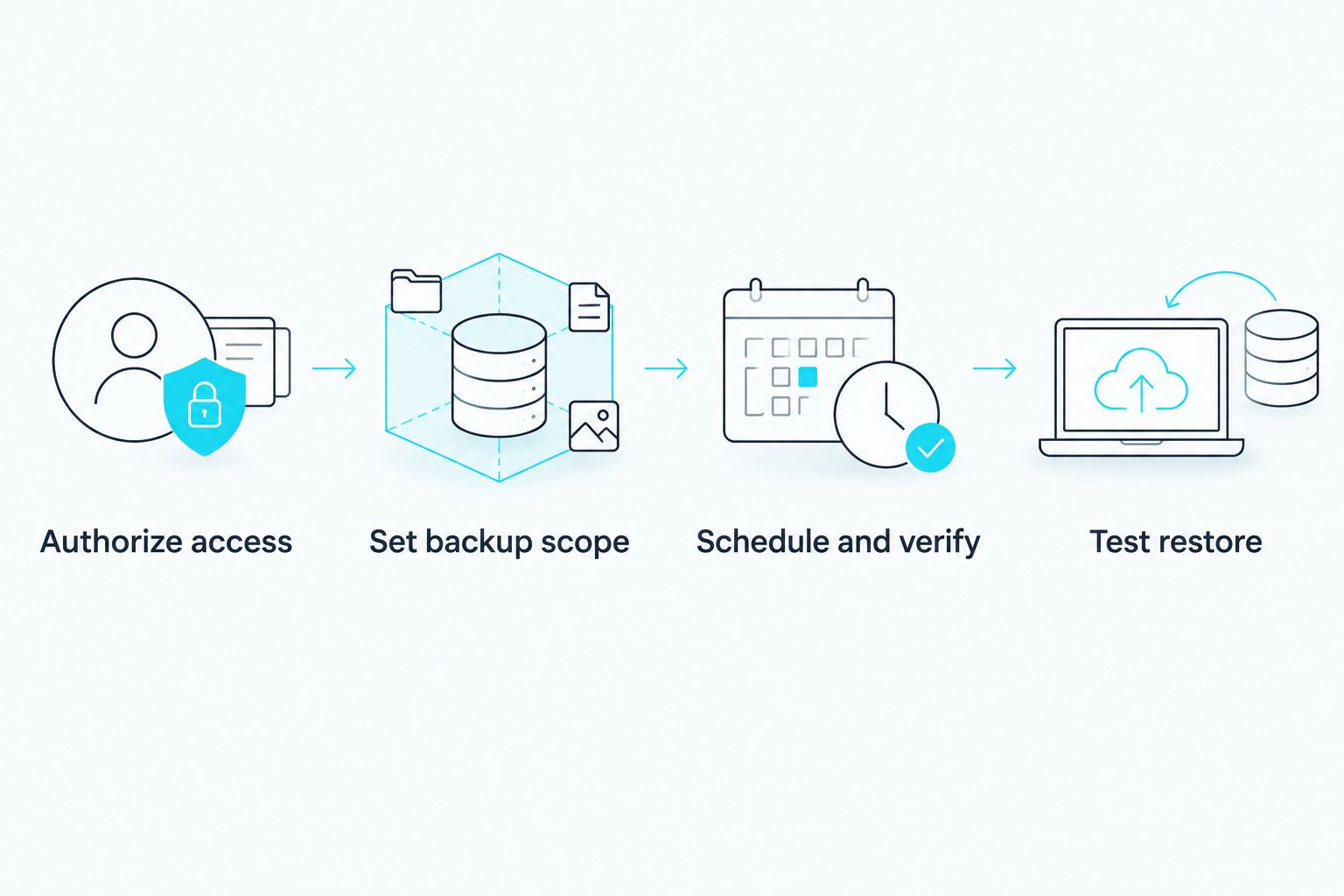
The sequence matters: authorize access, set backup scope, then schedule and verify. Testing after the first completed run catches a missing data category while the setup decisions are still fresh.
Run an on-demand backup before a major change
A scheduled run protects the normal workflow. An on-demand run serves a different purpose: capturing a known point before a bulk import, account restructuring, or another approved accounting change. Use this variant only if your chosen app supports an on-demand backup and lets you identify the resulting restore point.
- Check the latest completed scheduled backup and resolve any existing failure. Do not start a risky change while the backup connection is already broken.
- Use the backup app's documented on-demand backup action. Wait until it reports completion; a request to start a run is not evidence that the run finished.
- Record the completion time and the change you are about to make. Keep the note in your internal change record, not in a place that exposes accounting data to unnecessary users.
- Make the approved change. If you need to reverse it, have the accounting owner review the provider's restore options before applying anything to the live company. Restoring an earlier state can affect legitimate work entered after the backup.
Expected result: You have an identifiable pre-change copy and a decision-maker for any restore. If on-demand backups are unavailable, schedule the change after a verified run and decide whether the gap is acceptable before proceeding.
| Approach | Best for | Advantage | Limitation |
|---|---|---|---|
| Scheduled backup app | Ongoing protection of supported QuickBooks Online data | Runs without a person remembering each export | Coverage and restore behavior depend on the app |
| On-demand backup in that app | A known restore point before an approved change | Ties a copy to a specific event | Requires someone to confirm completion before the change |
| Manual QuickBooks export | Taking selected data out for review or recordkeeping | Lets a person inspect the exported files | Is not, by itself, a verified way to restore the company |
Best for routine recovery: a scheduled backup app with a tested restore process. Keep manual exports for their own purpose rather than labeling them a substitute for that process. TeraCloud's data-management role is to help the business keep the recovery procedure owned and repeatable, not to assume every backup app works the same way.
Troubleshoot the failures that matter
The app shows the wrong company. Stop before the first run. Confirm the active company in QuickBooks Online, disconnect the incorrect authorization through the provider's documented process, and reconnect the intended company. Then check the connected-company name again.
Authorization succeeds, but no backup completes. Inspect the app's run status and error details. Check that the required permissions remain active and that the connection has not been revoked. Do not respond by repeatedly reconnecting until you understand whether a backup job was ever started.
The latest run is old. Check the schedule, failure alerts, and connection status. Identify the last completed backup, not merely the last attempted run, then decide whether the resulting recovery gap is acceptable to the business.
The backup omits a critical record type. Compare the app's supported scope with your recoverability list. Confirm whether the item is unsupported, disabled in settings, or stored in another connected service; choose a separate protection method when the app cannot cover it.
A restore test would overwrite live records. Pause the test. Use a provider-supported safe destination or test procedure, and have the accounting owner approve any action that writes to the live company. Never test recovery by guessing what an overwrite button will do.
These checks separate three different failures: a broken connection, an incomplete copy, and an unusable restore. A green connection indicator addresses only the first. In 2026, make completed-run evidence and restore-test results part of the same review.
Customize your workflow
Start with the loss your business needs to avoid. If a day's accounting work is too much to recreate, set a backup frequency that fits that limit and confirm completed runs meet it. If preserving older versions matters, specify the required retention before choosing a setting. Neither decision should be inferred from the app's default.
Connect backup monitoring to an existing incident process: who receives an alert, who checks the last good copy, who tells the accounting owner, and who approves restoration. Write those responsibilities down. TeraCloud can support the managed IT and data-management side of that process; the accounting owner remains responsible for validating the restored business records.
Review connected apps and administrator access when roles change. An account that no longer belongs to the right owner is a recovery risk even when backups continue to run. Treat the backup app as one part of a wider plan for cloud access, security, and recovery, not as a replacement for those controls.
FAQ
What is the best way to set up quickbooks online cloud backup integration?
Connect a dedicated QuickBooks Online backup app through Intuit authorization, then verify its data scope, completed runs, and restore process. Choose the app based on what it can restore, not just what it can copy.
Is exporting QuickBooks Online data the same as backing it up?
No. An export gives you selected files, while a recovery plan needs a documented way to restore the required records. Keep exports for review or recordkeeping unless you have verified a separate restoration method.
Does connecting a backup app mean my data is protected?
No. A connection confirms access, not that a backup completed or that its contents can be restored. Check the first completed run and perform a safe restore test.
How often should I back up QuickBooks Online?
Set the frequency according to how much recent accounting work your business can afford to recreate. Confirm that completed backups, not just scheduled attempts, meet that requirement.
Can a QuickBooks Online backup app restore every attachment and transaction?
Do not assume it can. Supported data types and restore actions differ by app, so check the provider's documented scope against the records your business needs.
Should I run a backup before a bulk import?
Yes, if your app supports an on-demand run, create and verify a pre-change backup before the approved import. Have the accounting owner review the restore procedure before using it on live records.
Who should approve a QuickBooks Online restore?
An authorized accounting owner should approve changes to live accounting records. IT can manage access and the recovery process, but the accounting owner must validate the business outcome.
One last thing
Ask to see a restored record, not just a successful backup notification. That single check exposes the gap between storing data and recovering work. Your next step is to list the QuickBooks records you cannot afford to lose, then confirm a backup app can restore them safely.